


 7787
7787
MANAGING COURSE SETTINGS
The local administrator creates courses using the default course settings. However, to better align with specific goals and objectives, teachers may adjust the number of course hours and the content percentages in each of the four curricular areas. It is recommended that teachers review the course settings and, if changes are needed, make them BEFORE students complete their initial assessment.
Navigate to the target course. In the Teacher Tools menu, go to Class Management and click the Edit Course button located at the bottom of the menu.
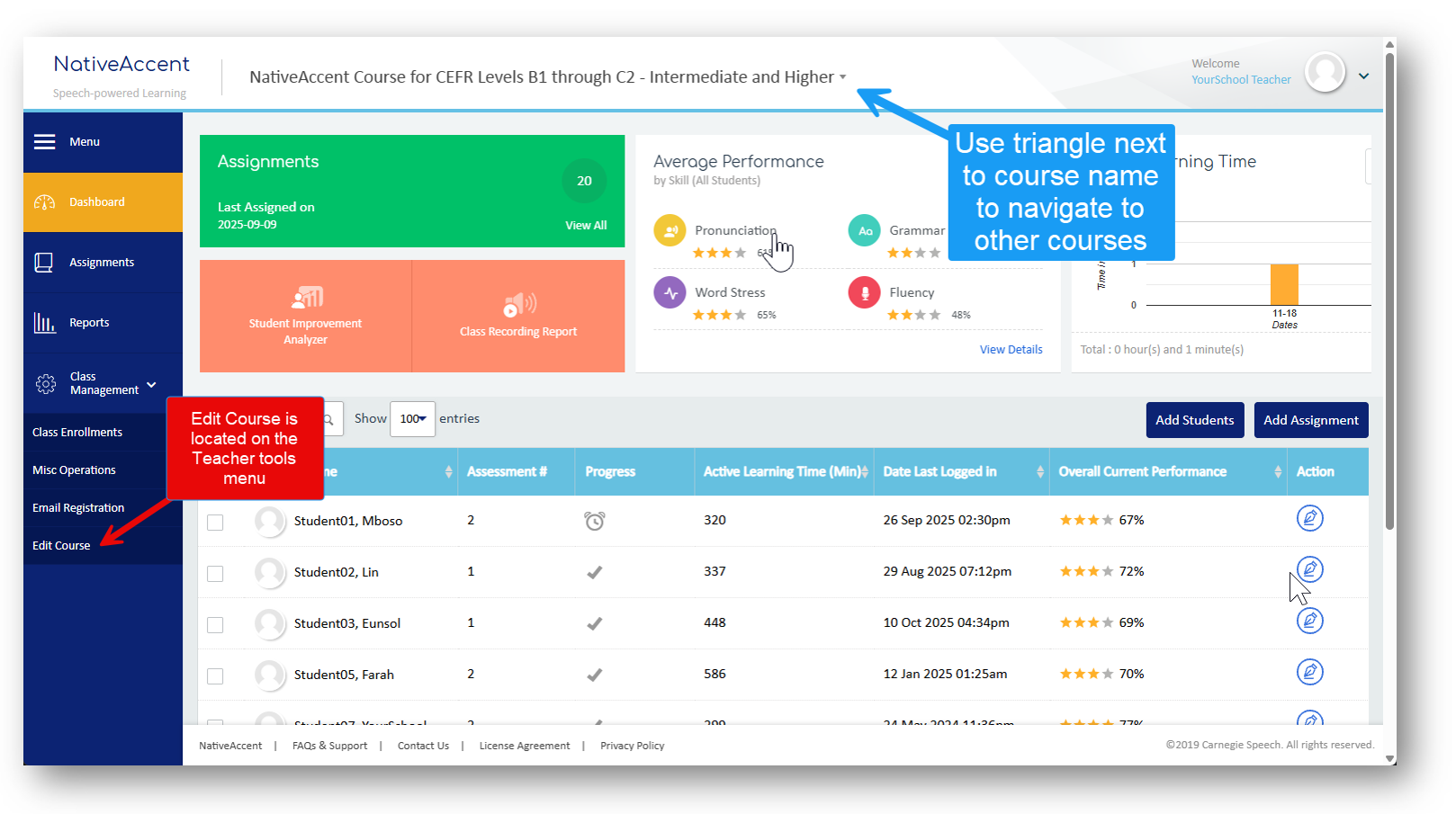
From the Edit Course dialog box, you can change the course's long name and short name (6-8 characters preferred) and edit the number of course hours and the percentage of course content in each skill area.
The local administrator has set up the course with preselected settings for Course, Assessment, Training, and Intelligent Tutor. You can change these settings as follows:
-
In the GENERAL tab, select the course Category. Select NativeAccent for CEFR levels B2 and higher. Select Carnegie BASICS for CEFR levels A2 and B1. Ignore other options.
-
Create the course “full name” (any descriptor that fits your schema).
-
Create the course “short name” (no more than eight alpha/numeric characters)
-
The Course ID Number is optional.
-
The Course Summary is optional; however, it is useful for leaving notes about the course. The course summary is only visible to the local administrator and the enrolled teacher(s).
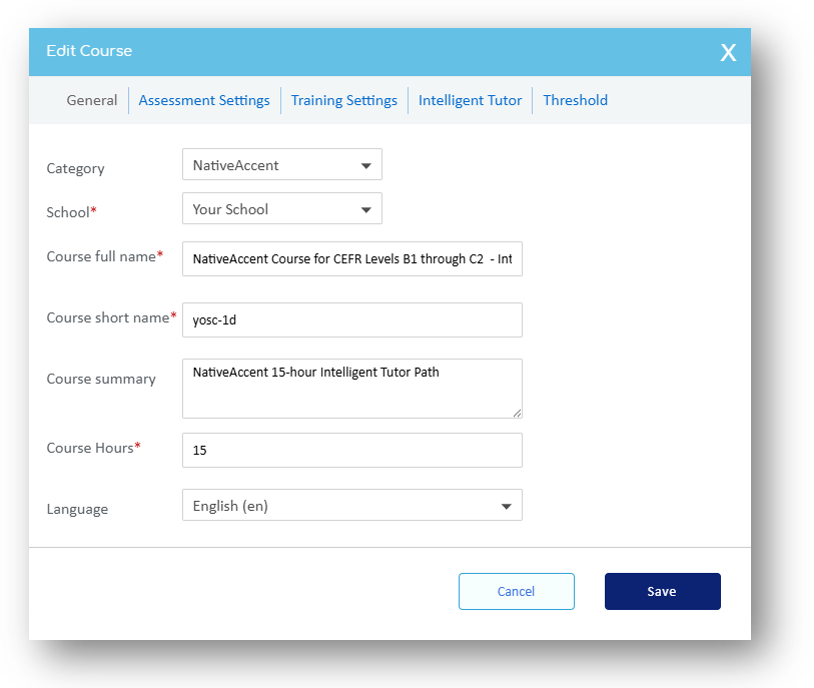
Set the Course Hours
-
-
Carnegie Speech recommends 1 hour at a sitting x 5 days per week to achieve the best results.
-
Multiply the number of weekly course hours you want your students to work by the number of weeks in the school term (minus the first week for onboarding students and the last week for finals if your students are in an academic program). Enter the number of course hours.
-
Alternative Strategy – set the course hours for half the total study hours. At the end of that period, the students will take an interim assessment, and the system will assign a new intelligent tutor path based on their latest assessment.
-
The Assessment Settings
Click on the Assessment Settings tab

The default settings are shown above. The optimal settings will allow students to complete the assessment in about 20 minutes. Changing "the Maximum number of times a student can attempt an assessment item" will extend the assessment time to at least 30 minutes. Changing the "Disable the Submit button..." will force a participant to complete the assessment in one sitting. If the participant leaves for any reason, they will lose their work and have to start over the next time they log in. This is not recommended.
The Training Settings - Click on the Training Settings tab.
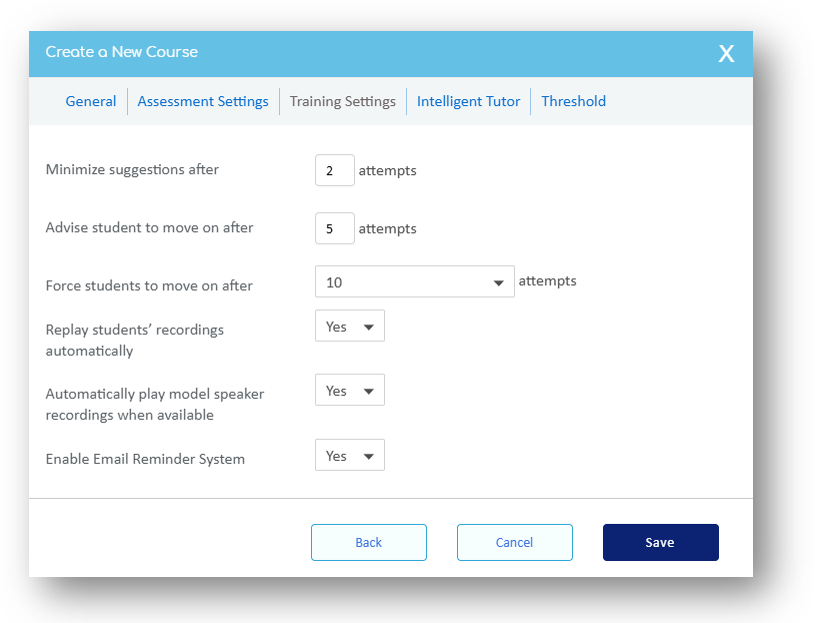
The default settings shown above are optimal. Changing these values may result in less feedback for students.
Email reminders - The system can send weekly reminders to students detailing their engagement in active learning minutes.
To enable, select "Yes" from the dropdown menu and click Save.
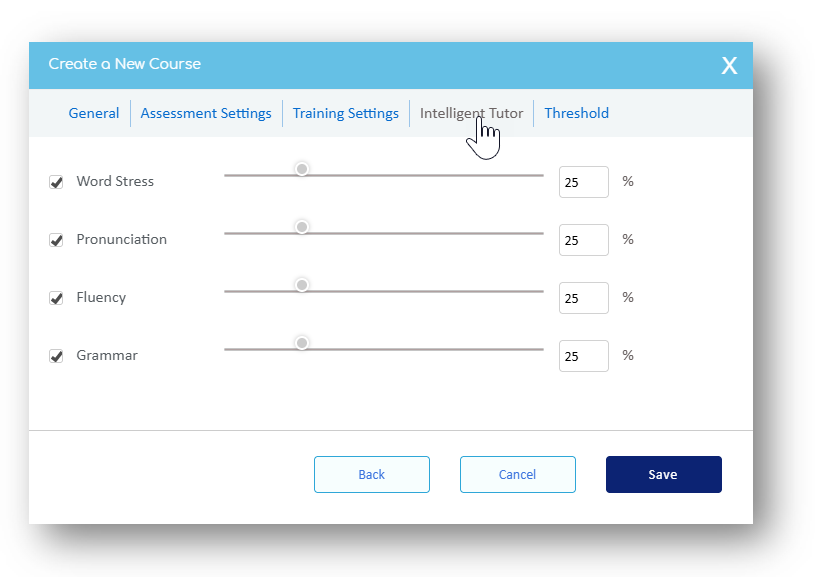
Set the curriculum content percentages - Click on the Intelligent Tutor Tab
-
The Local Administrator creates courses using the default settings.
-
Review and adjust the percentage assigned to each skill category.
-
If needed, adjust the values by using the slider bars or by entering the percentage. When typing the percentage, the total must equal 100% to complete this action. Using the slider bar, the system will calculate the percentages based on this visual organizer.
-
Setting the Scoring Thresholds for the reporting system - Click the Threshold tab

The default settings shown above are optimal for most classes. The details about how changing these values changes reporting metrics are discussed in detail in the knowledge base article https://support.carnegiespeech.com/kb/article/16-the-teacher-roadmap-08-the-summary-assessment-report/
CHANGING COURSE SETTINGS AFTER STUDENTS HAVE TAKEN THE ASSESSMENT
The course settings are applied to the student's record after the initial assessment is completed. Any changes to course settings after the initial assessment will not be applied to the students' learning path until either:
-
The student completes their assigned Intelligent Tutor path and takes the final assessment, after which a new Intelligent Tutor path will be created based on the new settings.
Or - The teacher uses the Class Management / Miscellaneous Operations tool to select the student's name and click Run IT (Intelligent Tutor). This will cause the student's learning path to update using the current data.
MANAGE CLASS ENROLLMENT / Miscellaneous Operations
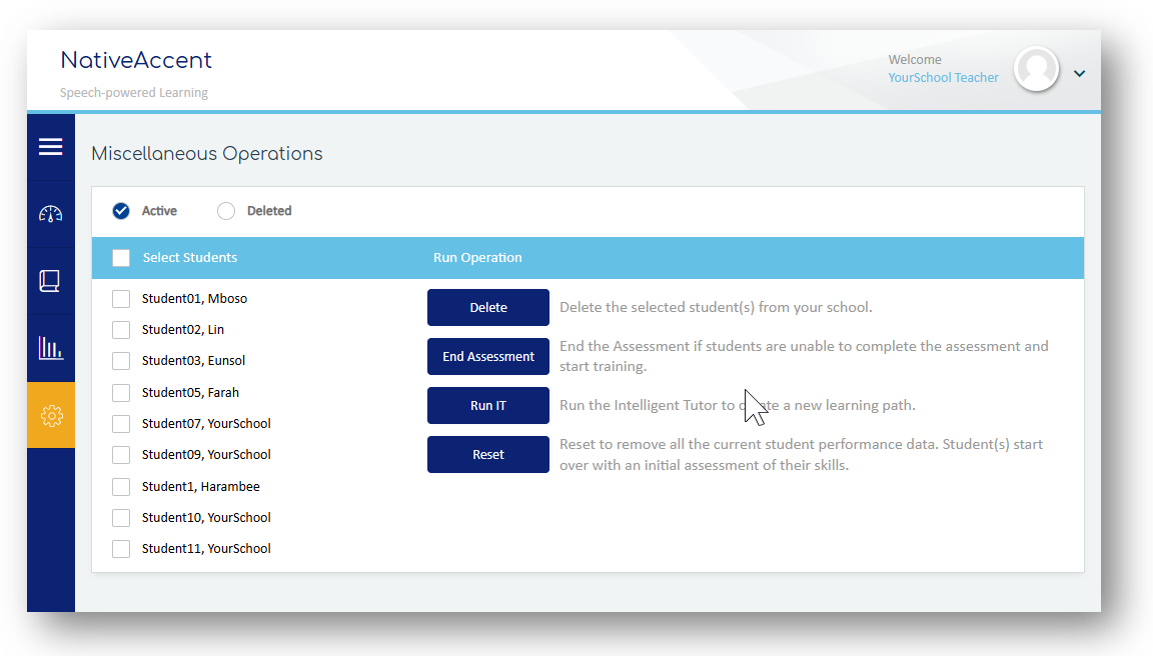
- Reset (students) (remove all assessments/skills) – removes all assessments and skills and starts the student back at a new initial assessment. Used for students who have been long absent from their studies
- Run IT (Intelligent Tutor) - recommended when moving student(s) from one class to another to assign the new class settings. All student data is maintained.
- Delete (students) – There are three states for a user in NativeAccent: Active, Deleted, and Permanently Deleted.
- Delete moves students from an active status to a Deleted status. Deleted students do not appear in the course roster or the list of unenrolled students in Course Management. The data and recordings for users in the Deleted state can be recovered.
- Users who are in the deleted state can be Permanently Deleted by clicking the Delete button, selecting the deleted student's name, and clicking Permanently Delete. This action will remove all users' personally identifiable information and their recordings from the system. This information is not recoverable.

